Transfer Files Wirelessly (Hotspot) between Mac & Android in 8 Easy Steps
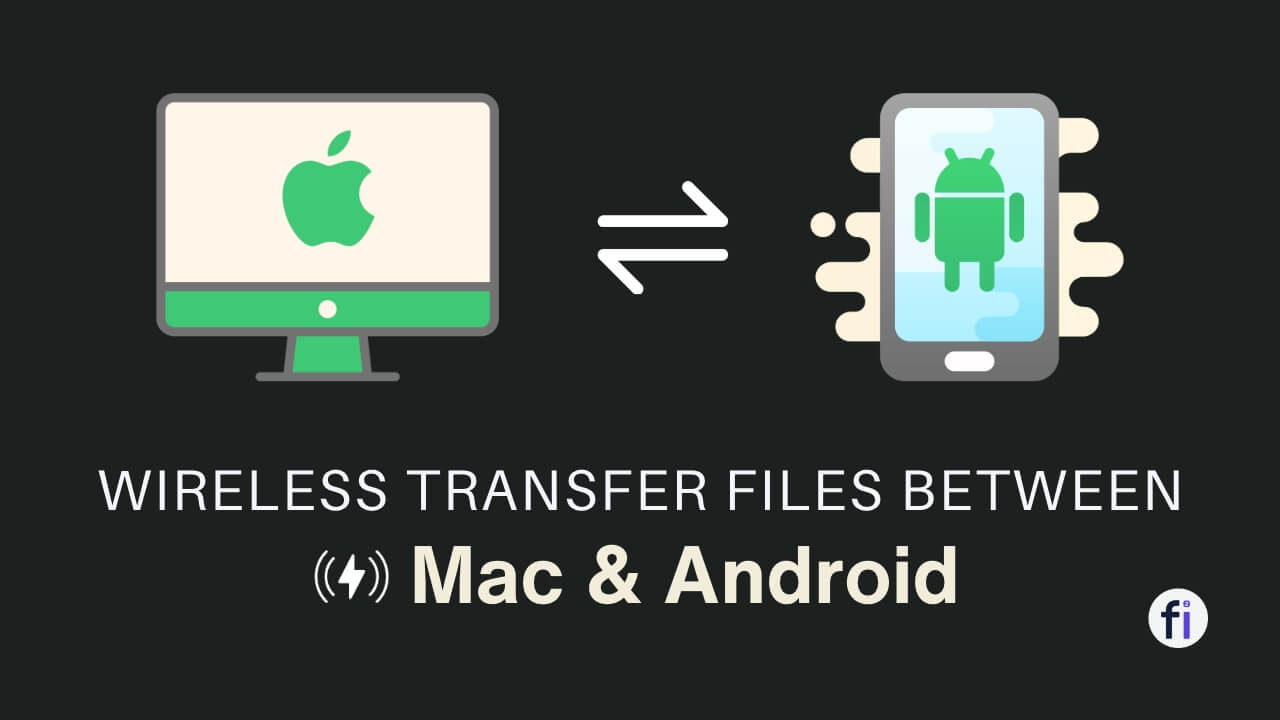
How to transfer files wirelessly between Mac & Android?#
If you own a Mac and an Android smartphone, you might wonder how to transfer files between them. Unlike Windows PCs, Macs do not have native support for Android devices, so you need to use some third-party tools or methods to transfer/move your data. In this blog post, we will show you the best way to transfer files wirelessly between Mac and Android in 8 easy steps.
This method does not require a USB cable, Wi-Fi, or an Active internet connection. However, an internet connection is required to download the app on Android.
Benefits of Transferring Files between Mac & Android Devices:#
Before we dive into the step-by-step instructions, let’s take a moment to understand the benefits of transferring files between your Mac and Android device. By having the ability to move files between these two platforms, you can:
- Access important documents and files on the go
- Share photos, videos, and music with friends and family
- Backup and restore files between devices
- Transfer large files quickly and efficiently
Now that we understand the importance and benefits of file transfer between Mac and Android, let’s delve into the step-by-step instructions.
Step-by-Step Instructions ? ⬇️#
Step 1: Download ShareX App on Your Android Phone#
The first step in transferring files between your Mac and Android device is to download an open-source app. Here’s how:

ShareX File Transfer App for Android
Download and install ShareX app from F-Droid on your Android Phone.
ShareX - File sharing, simplified. Sending and receiving of files in hassle-free way with fast speed!
Step 2: Turn on Hotspot in your Android Device#
In order to enable file transfer between your Mac and Android device, you need to connect your Mac via Wi-Fi from Hotspot on your Android device . Here’s how:
- Go to the Settings app on your Android device.
- Find or search for “Mobile Hotspot” on your Android device and turn it on from the Network Connection Settings.
- You can see the Hotspot icon in your Android device’s notification bar.
- Connect your Mac to the Android device’s Hotspot Network via Wi-Fi.
- Ensure that both your Mac and Android device are connected to the Hotspot and Wi-Fi network.
Step 3: Launch the ShareX App#

Launch the ShareX App
Launch the ShareX app. After connecting your Android device and Mac via hotspot (Wi-Fi), press the START button to start the FTP server.
Step 4: Type the IP Address into Your Mac Browser#

Type the IP Address into Your Mac
After pressing the START button, you will see an IP address appear at the bottom of the ShareX app.

Safari Mac Browser
Type and enter this IP address in the address bar of any Mac browser.

Step 5: Confirm Authentication in ShareX App#
After typing the IP address, press Enter.

Authentication in ShareX Mac
You will then see an authentication confirmation on your Android device.

Authentication in ShareX App
Confirm and “Allow” to establish the FTP connection between your Android device and Mac.
Step 6: Now Your Both Device is Ready to Transfer & Exchange Files#

Device is Ready to Transfer & Exchange Files
You can view all of your Android device’s files and folders in your Mac.
Step 7: Transfer Files from Android Device to Mac#

Select the files that you want to share
To share files from your Android device to your Mac, you can select the files that you want to share.

Click on the navigation icon in the upper left corner
Once you have selected the files, click on the** navigation icon** in the upper left corner and then click “Download” to get your files. The files will then be transferred to your Mac.

Successful transfer
After the successful transfer, you will see a confirmation notification in your Mac. The notification will show the size of the file and the time it took to transfer the file.
Step 8: Transfer Files from Mac to Android Device#
To transfer files from your Mac to your Android device, you need to click on the “Send Files” button in the upper navigation bar.

Transfer Files from Mac to Android Device
- You will see a popup window.
- **Select the files that you want to transfer **from your Mac to your Android device.
- Click on “Upload”.
- Your file will be transferred successfully to your Android device folder.
- For more information, check the details in the ShareX app for the folder at which the file is saved.
- Done.

You can customized more settings in ShareX app
Another Way to Transfer Files Between Your Mac & Android Device:#
The simplest way to transfer files between Mac and Android.
🔌 Using a USB cable#
First, Download & Install Android File Transfer Driver in your Mac.
Connect your Android device to your Mac via a USB cable .
Enable file transfer mode on your device. To do this:
- Swipe down from the top of your screen.
- Tap on the notification that says “Charging this device via USB”.
- Select “File Transfer” or “MTP” from the options.
- Your Android device will show up as a removable disk on your Mac Finder.
- Open the device and browse its folders.
- Drag and drop files between your Mac and your Android device as you would with any other external drive.
However, this method has some limitations. First, you need to have a USB cable handy. Second, you need to enable file transfer mode every time you connect your device.

☁️ Using a cloud service#
Another way to transfer files between Mac and Android is to use a cloud service , such as Google Drive , Dropbox , or OneDrive . You just need to install the app of your preferred cloud service on both your Mac and your Android device, and then sign in with the same account. You can then upload files from one device and download them on the other.
Conclusion#
In conclusion, transferring files between your Mac and Android device can be accomplished easily by following the steps outlined in this blog post.** This is the best method to transfer files, as it does not require a USB cable, Wi-Fi, or an internet connection.** However, an internet connection is required to download the app on Android. You can use this method to transfer files on any OS whether it’s Windows , Linux or MacOS it will work fine.
To establish a connection, you will need to create a hotspot on your Mac and connect your Android device to it. Once you are connected, you can enable file transfer on your Android device and select the files you want to transfer. Then, send the files to your Android device and verify the transfer.
This process allows you to access important files on the go, share media with friends and family, and work seamlessly across devices.