The Easiest Way: How to Take Screenshots on Windows, Mac, and Android
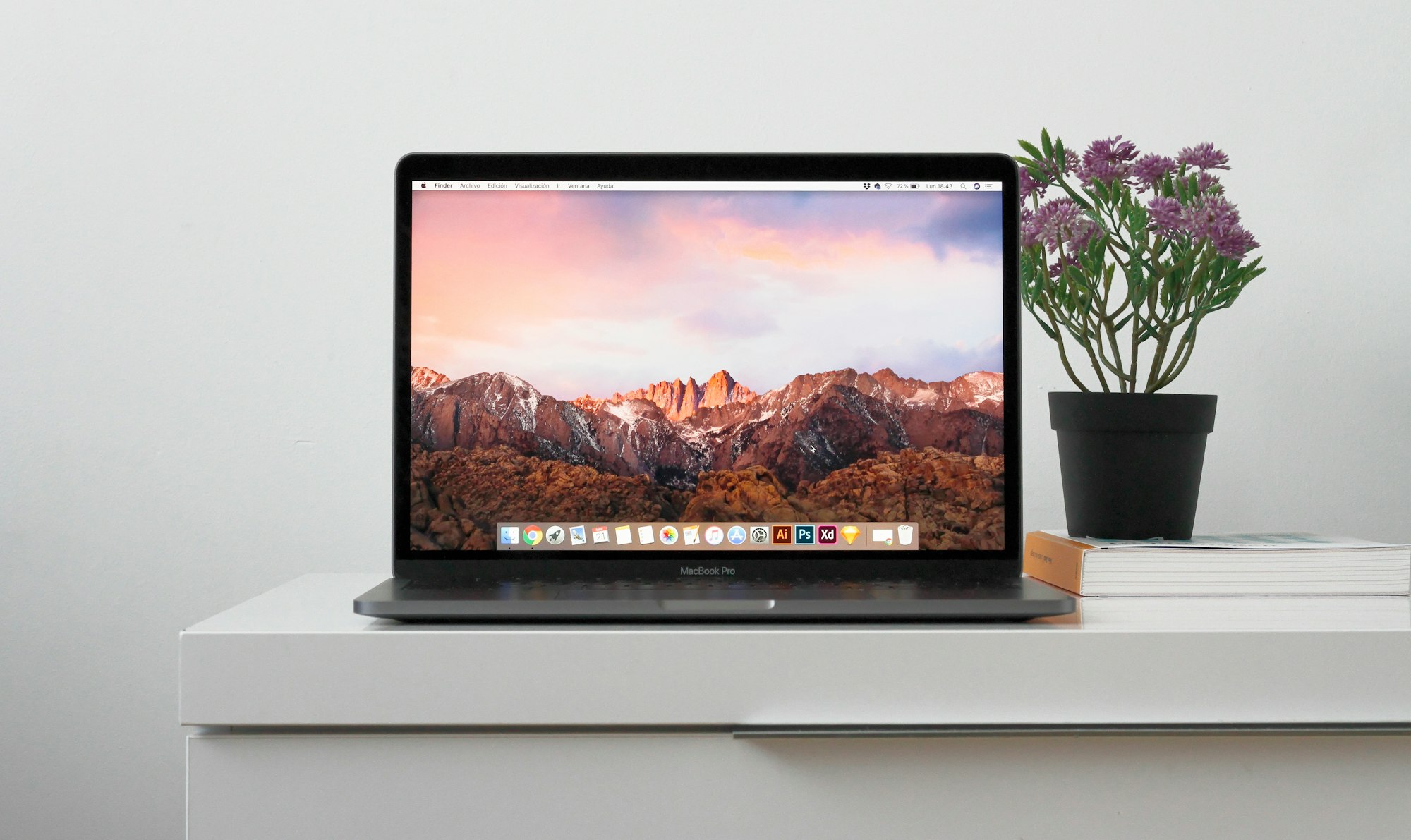
Screenshots are a helpful tool for capturing images of your computer or mobile device’s screen. They can be used for troubleshooting, documenting a process, or sharing information with others. This article will explain how to take a screenshot on a Windows, Mac, and Android device.
→ How to Take Screenshot on Windows#

Keyboard Shortcuts for Taking Screenshots on Windows
- Press** Windows** and Print Screen (PrtScn) button on your keyboard. This will take a screenshot of the entire screen.
- To capture a specific window, press the Alt + Print Screen (PrtScn) buttons. This will take a screenshot of the active window.

Search for “Snipping Tool” in Windows
- To capture a specific region of the screen, use the Snipping Tool. This can be found by searching for “Snipping Tool” in the Start menu.
- Once the Snipping Tool is open, **select the rectangular snip option and drag the cursor **to select the area of the screen you want to capture.
→ How to Take Screenshot on Mac#

Keyboard Shortcuts for Taking Screenshots on Mac
- Press the Shift + Command (⌘) + 3 buttons. This will take a screenshot of the entire screen.
- To capture a specific region of the screen, press the Shift + Command (⌘) + 4 buttons. This will turn your cursor into a crosshair, which you can then use to select the area of the screen you want to capture.
- To capture a specific window, press the Shift + Command (⌘) + 4 buttons, then press the Spacebar. This will turn your cursor into a camera icon, which you can then use to select the window you want to capture.

→ How to Take Screenshot on Android#

Button Shortcuts for Taking Screenshots on Android
- Press the Power and Volume Down buttons at the same time. This will take a screenshot of the entire screen.
- On some devices, you may need to press the Power and Home buttons at the same time (Old Samsung Smartphones).
- Some devices running android 10 and later version comes with built-in screenshot option in the power menu, which can be accessed by long-pressing the power button.
The Top 5 Best Android Launchers for a Customized User Experience in 2023
FAQs#
How do I find my screenshots on Windows?
On Windows, your screenshots are saved in the Pictures > Screenshots folder.How do I find my screenshots on Mac?
On Mac, your screenshots are saved on the desktop with the name “Screenshot date time.png”How do I find my screenshots on Android?
On Android, your screenshots are usually saved in the Gallery app or in the Screenshots folder in the device's internal storage.Can I edit my screenshots after I take them?
Yes, Windows & MacOS have built in screenshot editor otherwise you can use image editing software such as Paint or Photoshop to edit your screenshots.How do I take a screenshot on a laptop with a touch screen?
On a laptop with a touch screen, you can take a screenshot by pressing the Windows key + Print Screen (PrtScn) buttons.How do I share my screenshot?
You can share your screenshot by email, social media, or instant messaging. You can also upload it to a cloud storage service such as Dropbox or Google Drive and share the link.In conclusion, taking screenshots on Windows, Mac, and Android devices is a simple process. Whether you want to capture the entire screen or just a specific region or window, the methods outlined in this article will help you get the job done quickly and easily.
Reference Headlines for this post:#
- “Master the Art of Screenshot: A Comprehensive Guide for Windows, Mac, and Android”
- “Everything You Need to Know About Taking Screenshots on Windows, Mac, and Android”
- “Screenshots Made Easy: A Step-by-Step Guide for Windows, Mac, and Android”
- “Capture Your Screen like a Pro: A Beginner’s Guide to Screenshots on Windows, Mac, and Android”
- “From Windows to Mac to Android: The Ultimate Guide to Taking Screenshots”
- “Screenshots 101: How to Take, Edit, and Share on Windows, Mac, and Android”
- “Get the Perfect Shot: How to Take Screenshots on Windows, Mac, and Android”
- “Screenshots Simplified: A guide for Windows, Mac, and Android users”
- “The Ultimate Screenshot Guide for Windows, Mac, and Android”
- “Screen Capture Simplified: A Guide to Taking Screenshots on Windows, Mac, and Android”